BMP to WEBP
Created on 25 October, 2025 • Image Manipulation tools • 254 views • 2 minutes read
Converting BMP to WEBP is the process of transforming bitmap image files (BMP) into the WEBP format. BMP, one of the oldest image formats
BMP to WEBP Conversion: Efficient Image Optimization for the Web
What is BMP to WEBP Conversion?
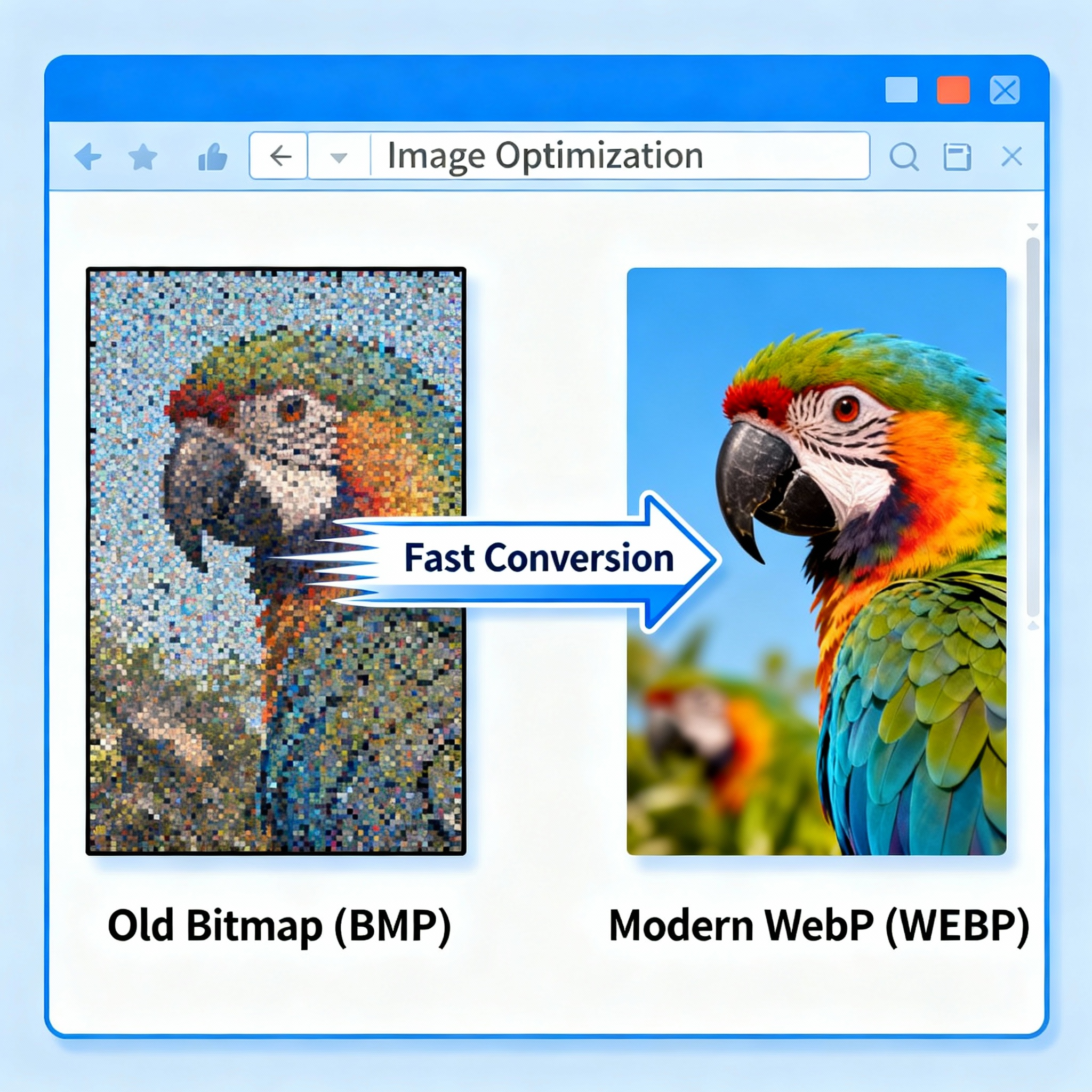
Converting BMP to WEBP is the process of transforming bitmap image files (BMP) into the WEBP format. BMP, one of the oldest image formats, is known for storing uncompressed, high-quality pixel data. However, BMP files often result in large file sizes, which can slow down website performance and use more bandwidth. WEBP, developed by Google, is a modern image format that delivers superior compression and quality, making it ideal for websites aiming to improve load speeds and SEO.
Why Convert BMP to WEBP?
- Reduced File Size: WEBP images are much smaller than BMP files. WEBP uses both lossy and lossless compression, shrinking file sizes by up to 80% compared to BMP without significant quality loss.
- Faster Website Performance: Smaller image files mean faster loading times, which leads to improved user experience and better SEO rankings.
- Transparency and Animation Support: While BMP lacks support for features like transparency and animation, WEBP allows both, making it more versatile for modern web design.
- Better Bandwidth Efficiency: Optimized images mean less data transfer, saving on bandwidth costs and making your site more accessible to users with slow connections.
How BMP to WEBP Conversion Works
Using Online Converters and Software
Several online tools and graphic software suites allow BMP to WEBP conversion. The process usually involves selecting your BMP file, choosing output preferences (such as quality and transparency), and downloading the converted WEBP image. Software like Adobe Photoshop, GIMP, and dedicated web-based converters handle the task in seconds.
Steps to Convert BMP to WEBP
- Upload or Select BMP File: Begin by choosing the BMP image from your device.
- Adjust Quality Settings (Optional): Decide on lossy or lossless compression and tweak transparency or animation if needed.
- Start Conversion: Click the convert button to initiate file transformation.
- Download the WEBP Image: Save the newly created WEBP image for use on your site or socials.
Advantages of WEBP for SEO
Improved Page Speed
Page load time is a ranking factor on search engines. Converting BMP images to WEBP leads to faster loading pages, which search engines favor for higher rankings. Websites that deploy WEBP images typically perform better in speed tests and deliver a snappier experience for visitors.
Richer Visual Features
Unlike BMP, WEBP supports background transparency and animation—enhancing your site’s aesthetics. Transparent backgrounds are vital for logos, overlays, and icons that blend seamlessly into modern web layouts.
Greater Responsiveness
WEBP images are lighter and can be quickly loaded on desktops, tablets, and mobiles. This responsive capability is critical in mobile-first SEO strategies.
Important Considerations When Converting BMP to WEBP
- Backup Original Files: Before conversion, always keep a copy of your BMP files in case you need them for archival or design purposes.
- Quality Checks: Review WEBP images after conversion to ensure color accuracy and detail preservation, especially with lossy compression.
- Automation for Large Libraries: If you have many BMP files, consider using batch conversion scripts or plugins to save time.
Conclusion
BMP to WEBP conversion is a powerful way to optimize images for the web. By shifting from BMP’s bulky, outdated format to WEBP’s lightweight and versatile standard, you dramatically boost website speed, enhance SEO, and deliver a better user experience. As search engines continue to prioritize fast-loading pages, making the switch to WEBP is one of the smartest moves for any webmaster or business owner focused on digital success.
Popular posts
-
GIF to BMPImage Manipulation tools • 843 views
-
GIF to WEBPImage Manipulation tools • 784 views
-
GIF-to-PNGImage Manipulation tools • 636 views
-
SHA-3/512 generatorConverter tools • 435 views
-
GIF to JPGImage Manipulation tools • 402 views